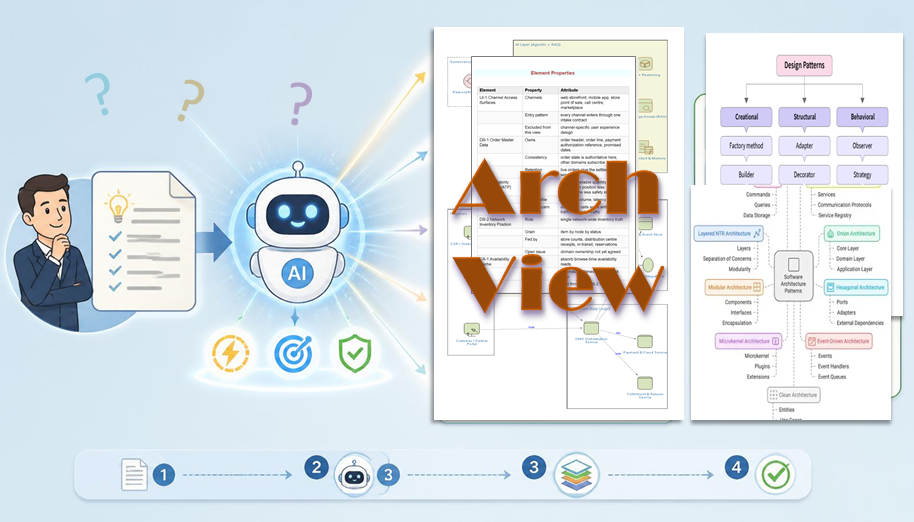
Solution architecture can get complex fast, especially for large-scale solutions, which makes architecting time-consuming, even before you get to the diagram. ArchView (an AI Skill Tool) is built to change that: it renders architectural views quickly, so you can spend your time on the thinking, not the drawing, together with the stakeholders who each need to see the solution from their own viewpoints.
What ArchView Does
ArchView generates IT architecture diagrams and model views in a node-image style, primarily at the enterprise solution architecture (ESA) level, the space between enterprise architecture and solution design. Ask for an architecture diagram, a solution architecture view, an enterprise architecture model, or simply “visualize this system’s architecture,” and ArchView maps your solution onto a set of ESA elements (services, data stores, gateways, roles, and more), then generates a self-contained HTML view with zoom, PNG/PDF export, and a properties panel.
It’s built for large or complex solutions that need a clear, maintainable view, not for detailed design or code-level diagrams (class diagrams, sequence diagrams), and not for quick, informal sketches.
What It Looks Like
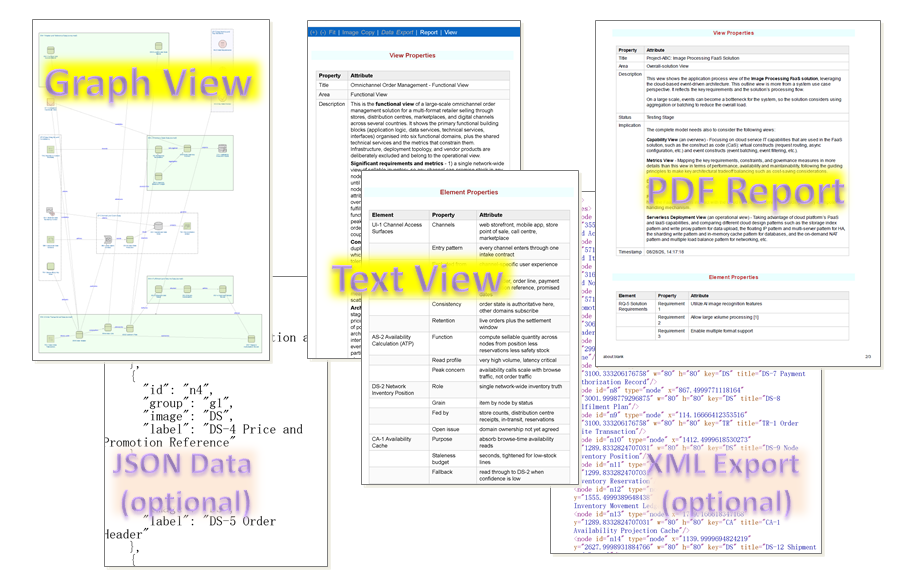
The following image is a glimpse of a typical ArchView output. The one-page HTML view includes an architectural graph image with zooming and panning for easy viewing, a brief description and property specifications for architectural analysis points, an optional PDF report with both image and text descriptions for printout, JSON input data for minimal record-keeping, and XML export for customization.
What Makes It Different
- A practical set of well-framed architectural elements – holistic yet simple
- An abstraction level between enterprise architecture (EA) and solution design
- Six simple yet complete view areas, fitting different use cases and architectural styles
- A node-image style graph with HTML output, supplemented by descriptions and property specifications
For a more detailed walkthrough, see this post: What Makes ArchView (AI Skill) Different?
Where to Get It
Download it from the link; a quick upload installs it, and you’re ready to go.
How to Use ArchView
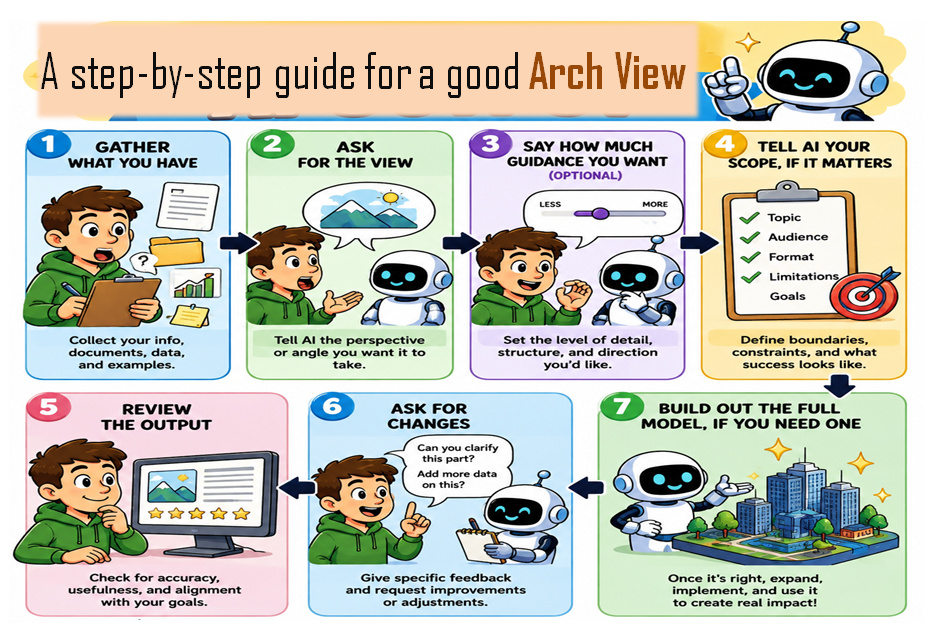
Here’s a simple picture showing a step-by-step guide to getting a good architecture view out of ArchView once it’s installed.
Just describe what you want in plain language. For example:
- “Draw a solution architecture view for an order management platform with a mobile app, an API layer, and a database.”
- “Help me design an enterprise architecture view for our data platform; I don’t have a draft yet.”
Treat the first output as a draft. You can refine it with follow-ups like:
- “Split this into two views, it’s too crowded.”
- “Show more of the data flow between the catalog and the warehouse.”
ArchView’s output style adapts to your needs:
- If you already have a strong opinion on the architecture, say so (“use my structure, just clean it up”).
- If you want AI to lead with typical patterns, say that instead (“what would a leading practice look like here?”).
- If you don’t specify either way, ArchView defaults to a collaborative pass, using your input where you’ve given it, filling gaps with common patterns, and flagging any assumptions it made.
- If you say “just show me the roles, systems, requirements, components, and deployment nodes,” it will keep the view lean rather than pulling in the full element set.
- If you’re modeling something substantial, consider asking for companion views.
For a verbal walkthrough of these steps, see this link.
Limitation
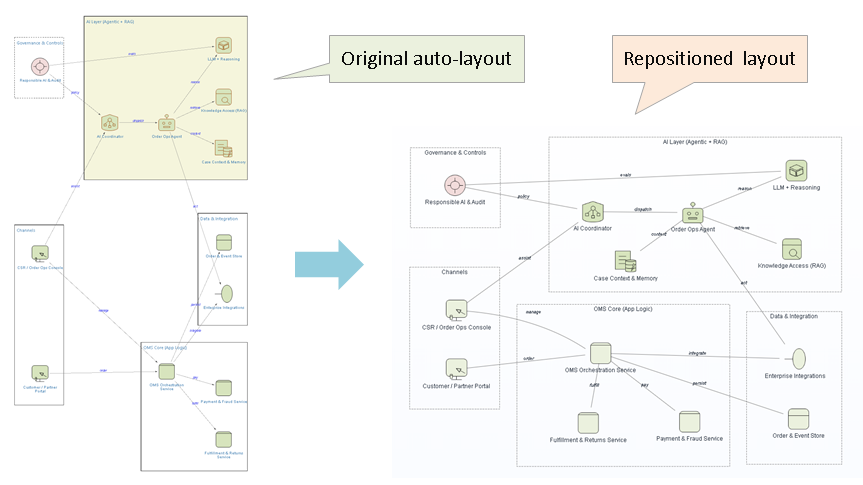
Because of auto-layout, elements in the output view may not appear in the expected order or position. If you want to reposition the nodes, groups, or links, you can export the view as an .xml file to diagram.a-esa.com for manual repositioning. The following image compares the original auto-layout with the repositioned layout.
Feedback
ArchView is a practical skill and tool. I hope it helps with your complex solutions, whether traditional, AI-native, or AI-augmented. Give it a try.
Your comments and feedback are welcome.
Checking…
Retry »
Sending message…
Let’s Connect
Fill in the form below and we will be in touch soon